
If you’ve ever copied text from a PDF or a website and pasted it into a Word document, you’ve probably experienced the wonky formatting that can result. This mess can be avoided by using Word’s Paste Options to copy in plain text instead of formatted text—and it’s easy to do. (These instructions are for using Word on a PC; Word for Mac is slightly different, but I think you’ll get the gist.)
Step 1. Open Paste Options.
Normally, I use the hotkeys for cut (Control+X), copy (Control+C), and paste (Control+V).
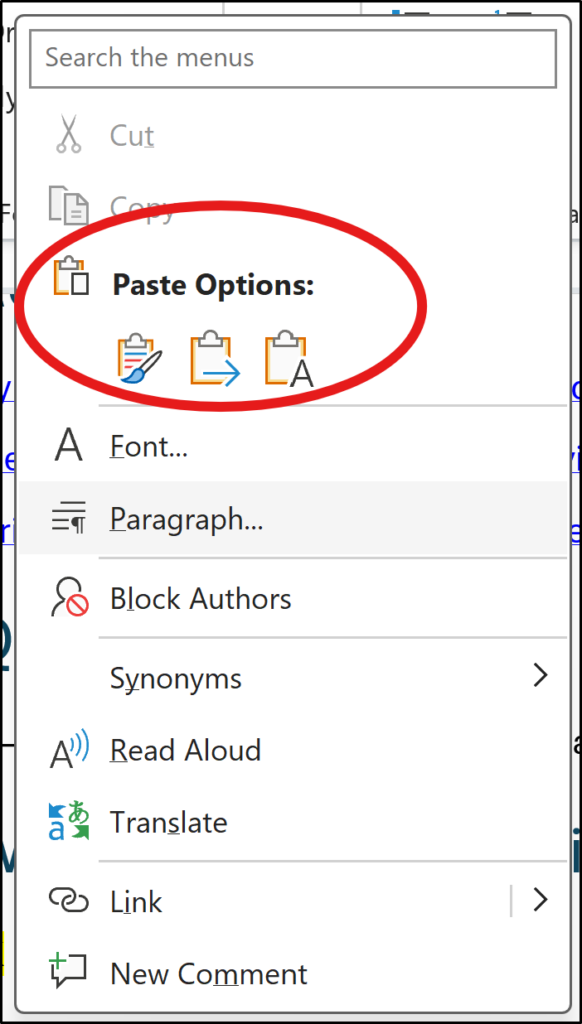
When I know I want to avoid a likely formatting mess, instead of Control+V, I click into the document where I want to paste the text and use a right-click to get the “Paste Options” menu.
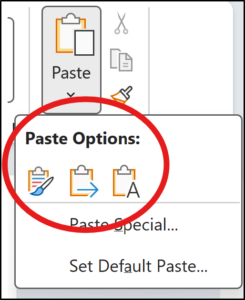
Alternately, if you use the ribbon (the toolbar at the top of Word) for clipboard actions (cut, copy, paste), you can click on the Paste down arrow to see “Paste Options.”
Step 2. Choose the Keep Text Only button.
Under Paste Options, there are three buttons.

Keep Source Formatting. This is the default option (for instance, with the typical Control+V). It is usually fine when working within the same document, but if you are getting the formatting mess going between programs, this default is likely why.

Merge Formatting. This option tells Word to put the pasted text into the target document’s formatting. This might work if the same styles are used in both documents (for instance, in two Word documents that use the default styles). If the two files don’t use the same styles, this paste option doesn’t really help; I find using it usually results in something similarly messy to the first option.

Keep Text Only. This option pastes in plain text, usually in the “Normal” style. Using this option is the trick to avoiding the formatting mess. Once the text is copied in, you can apply any needed styles to it.
A setting to make plain text the default
If you deal with this issue regularly, Word has a setting that might help.
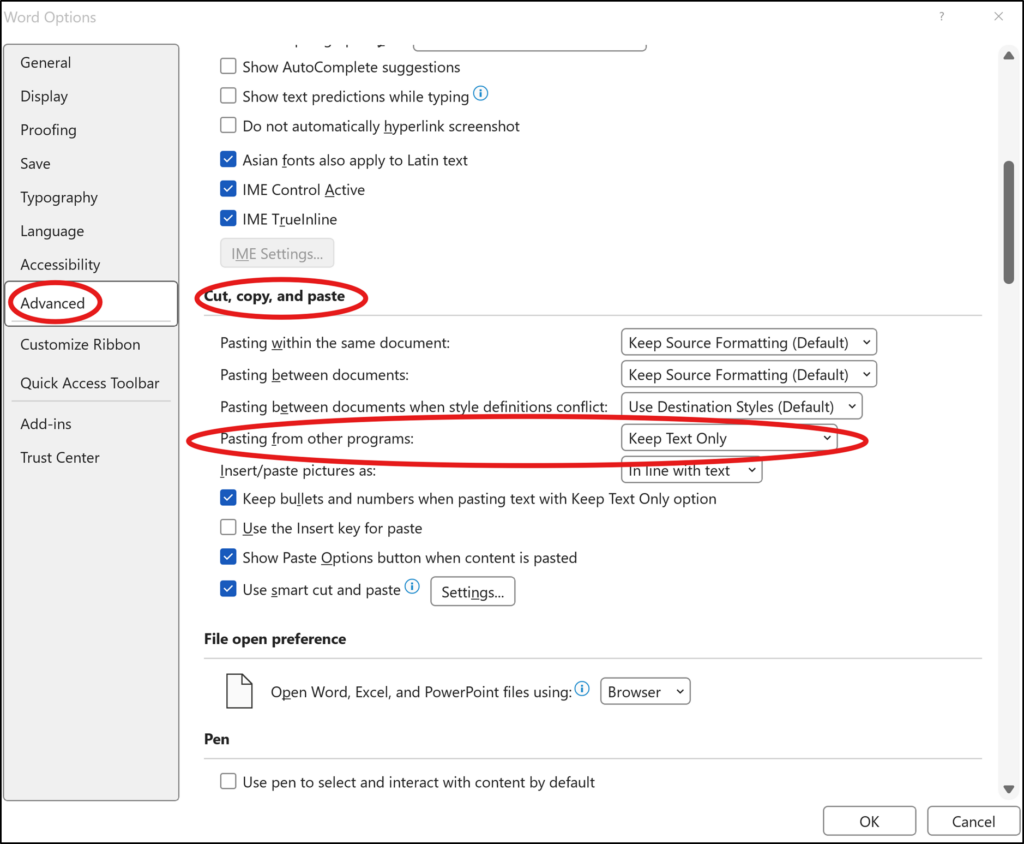
- Choose File>Options>Advanced.
- Scroll down to Cut, copy, and paste.
- Change “Pasting from other programs” to “Keep Text Only.” (There are other options you can adjust as well, if needed.)